In the previous posts (part 1 and part 2), we set up a Postgres database and two simple Go microservices for our backend API. Today, in the final part of this series, we’ll be packaging our services up with Docker for easy deployment.
As a reminder, we currently have the following docker-compose.yaml file:
services:
  db:
    image: postgres:18-alpine
    ports:
      - 5432:5432
    volumes:
      - pgdata:/var/lib/postgresql
    environment:
      - POSTGRES_USER=pgroot
      - POSTGRES_PASSWORD=pgpass
      - POSTGRES_DB=blog
    networks:
      - backend

volumes:
  pgdata:


networks:
  frontend:
  backend:
Right now, it just contains our Postgres image. We’ll be adding our services to it next.
Dockerizing our Go services
Let’s start with our first Go service, the one that deals with blog posts. In the project root, we’ll add a .dockerignore and Dockerfile file.
The .dockerignore file is very simple, and just looks like this:
Dockerfile
server.exe
As the name implies, this causes Docker to ignores those files.
The Dockerfile itself is more interesting. It’s split into 2 parts: a build stage, and a runner stage. As the name implies, the first stage is responsible for building our app, while the second stage runs it. This is a common pattern when working with Docker, as it splits off the building of the app (and all the dependencies it requires) from the actual running of the app. As we’ll see in a minute, for Go apps this can lead to some very minimal final images.
The build stage looks as follows:
# ------------------------------------------------
# STAGE 1: BUILD
# ------------------------------------------------

FROM golang:1.26.0-alpine AS builder

# env vars for the Go build process
ENV CGO_ENABLED=0 \
    GOOS=linux \
    GOARCH=amd64

# set working directory
WORKDIR /build

# create a non-root user to run the app
RUN adduser -D -u 1001 appuser

# copy Go module files and download dependencies
COPY go.mod go.sum ./
RUN go mod download

# copy the rest of the app source code
COPY . .

# build the Go app
RUN go build -ldflags="-s -w" -o app ./cmd/
I’ve annotated it with comments that should hopefully explain what each step does. But to summarize, we build our app as a statically linked binary without any dependencies. We also create a non-root user that we’ll copy over to our runner, so that we can run our app as an unprivileged user.
Of course, there’s nothing stopping us from also simply running our app in this image, but why would we? It contains a lot of unnecessary stuff, all of which not only inflates the size of our image, but also widens its attack surface. So, what could we do?
Well, the Go image we’re using here is about 100MB in size. Not huge, but definitely not lean either. We could go for just the base Alpine image, which weighs in at about 4MB, a significant reduction. But there is something even smaller: nothing.
The special scratch image is literally an empty filesystem. It contains nothing. Obviously, we should use it.
# ------------------------------------------------
# STAGE 2: RUN
# ------------------------------------------------

FROM scratch AS runner

# metadata for the image
LABEL org.opencontainers.image.authors="bw" \
    org.opencontainers.image.title="Blog Posts service"

# copy SSL certs and non-root user from the builder stage
COPY --from=builder /etc/ssl/certs/ca-certificates.crt /etc/ssl/certs/
COPY --from=builder /etc/passwd /etc/passwd

# copy the built app binary from the builder stage
COPY --from=builder /build/app /app

# switch to the non-root user
USER appuser

# expose the port the app listens on
EXPOSE 8080

# set the image entrypoint to run the app
ENTRYPOINT ["/app"]
Here’s the second part of our Dockerfile, containing the runner. This will be our final image. The only extra thing we typically have to do in this case is copying over the SSL certificate bundle from our builder, because our scratch image doesn’t contain any. Doing this will allow our app to make https requests. We don’t currently make any https requests, so this step is technically not needed, but I left it in to illustrate how to use the scratch image.
Other than that, we copy over the non-root user we’ve created in the builder stage. Again, this is not strictly necessary, especially since we’re running our app in a literally empty image, but it’s good practice nonetheless.
With our Dockerfile now complete, we can build the image. It looks something like this:
> docker build -t bw/blog-posts-service:1.0 .
[+] Building 17.2s (13/15)                                        docker:desktop-linux
 => [internal] load build definition from Dockerfile                              0.1s
 => => transferring dockerfile: 1.42kB                                            0.0s
 => [internal] load metadata for docker.io/library/golang:1.26.0-alpine           1.4s
 => [internal] load .dockerignore                                                 0.0s
 => => transferring context: 64B                                                  0.0s
 => [builder 1/7] FROM docker.io/library/golang:1.26.0-alpine@sha256:d4c4845f5d6  5.4s
 => => resolve docker.io/library/golang:1.26.0-alpine@sha256:d4c4845f5d60c6a974c  0.0s
 => => sha256:620ce275e86ec364135f603517679f51437c2da390313e710d0f78 126B / 126B  0.2s
 => => sha256:8ede2856567d2593950de6f98f5d2763ae304caeb0ff577a 67.18MB / 67.18MB  3.5s
 => => sha256:54e3cee16f61a04c1478b0bea063f6591a583f68c5ec96 296.08kB / 296.08kB  0.4s
 => => extracting sha256:54e3cee16f61a04c1478b0bea063f6591a583f68c5ec96ad17bd602  0.1s
 => => extracting sha256:8ede2856567d2593950de6f98f5d2763ae304caeb0ff577a1318c06  1.7s
 => => extracting sha256:620ce275e86ec364135f603517679f51437c2da390313e710d0f782  0.0s
 => => extracting sha256:4f4fb700ef54461cfa02571ae0db9a0dc1e0cdb5577484a6d75e68d  0.0s
 => [internal] load build context                                                 0.1s
 => => transferring context: 28.81kB                                              0.0s
 => [builder 2/7] WORKDIR /build                                                  0.3s
 => [builder 3/7] RUN adduser -D -u 1001 appuser                                  0.3s
 => [builder 4/7] COPY go.mod go.sum ./                                           0.1s
 => [builder 5/7] RUN go mod download                                             1.3s
 => [builder 6/7] COPY . .                                                        0.1s
 => [builder 7/7] RUN go build -ldflags="-s -w" -o app ./cmd/                     6.6s
 => exporting to image                                                            2.0s
 => => exporting layers                                                           0.0s
 => => exporting manifest sha256:48e073e1a56d5f4f6babef11dd28823f591057ec7f844a4  0.0s
 => => exporting config sha256:49f6670163996d22bd29429cdfd218b3c044f0faeba1403ae  0.0s
 => => exporting attestation manifest sha256:93ae6a95c38da2188b5df0740e1fb65b93d  0.0s
 => => exporting manifest list sha256:74126aa147e367dc35272f1e57fe12bc6bb46f5fde  0.0s
 => => naming to docker.io/bw/blog-posts-service:1.0                              0.0s
 => => unpacking to docker.io/bw/blog-posts-service:1.0                           0.0s

>
The whole thing runs in just a few seconds. After doing the same for our comments service (which literally involves copy-pasting the Dockerfile and .dockerignore files and changing the port), here’s the images we have so far:
> docker images -a
                                                                   i Info →   U  In Use
IMAGE                                ID             DISK USAGE   CONTENT SIZE   EXTRA
bw/blog-comments-service:1.0         ca833d34c3e0       22.4MB         6.05MB
bw/blog-posts-service:1.0            74126aa147e3       22.3MB         6.03MB
bw/blog-posts-service:1.0-a          dda988933d0f       35.3MB         9.89MB
postgres:18-alpine                   aa6eb304ddb6        403MB          113MB    U
The 1.0-a image is one I’ve built using the Alpine base image, so you can see the difference with the scratch image.
Composing our services
Now that we have our two Go services built into Docker images, it’s time to add them to our Docker compose file:
services:
  # [...]

  posts:
    build:
      context: ./api/posts/
    init: true
    ports:
      - "8080:8080"
    environment:
      - DB_DSN=host=db user=pgroot password=pgpass dbname=blog sslmode=disable
    networks:
      - frontend
      - backend
    depends_on:
      - db

  comments:
    build:
      context: ./api/comments/
    init: true
    ports:
      - "8181:8181"
    environment:
      - DB_DSN=host=db user=pgroot password=pgpass dbname=blog sslmode=disable
      - POST_SVC_ADDR=posts:9090
    networks:
      - frontend
      - backend
    depends_on:
      - db

# [...]
Note the POST_SVC_ADDR environment variable. I made a small change to the comments Go service, to load the connection string for the gRPC service from this environment variable (it was previously hardcoded).
Now, with these additions, we can run our services:
> docker compose up

// lots of Docker build logs...

#28 [comments] resolving provenance for metadata file
#28 DONE 0.0s

#29 [posts] resolving provenance for metadata file
#29 DONE 0.0s
[+] up 5/5
 ✔ Image blog-service-posts          Built                                                    1.3s
 ✔ Image blog-service-comments       Built                                                    1.3s
 ✔ Container blog-service-db-1       Running                                                  0.0s
 ✔ Container blog-service-comments-1 Created                                                  0.1s
 ✔ Container blog-service-posts-1    Created                                                  0.1s
Attaching to comments-1, db-1, posts-1
comments-1  | time=2026-03-08T19:50:00.723Z level=INFO msg="app: starting"
comments-1  | time=2026-03-08T19:50:00.728Z level=INFO msg="db: connected" host=db port=5432 database=blog user=pgroot
comments-1  | time=2026-03-08T19:50:00.728Z level=INFO msg="server: listening" addr=:8181
posts-1     | time=2026-03-08T19:50:00.778Z level=INFO msg="app: starting"
posts-1     | time=2026-03-08T19:50:00.788Z level=INFO msg="db: connected" host=db port=5432 database=blog user=pgroot
posts-1     | time=2026-03-08T19:50:00.789Z level=INFO msg="http server: listening" addr=:8080
posts-1     | time=2026-03-08T19:50:00.791Z level=INFO msg="grpc server: listening" addr=:9090
posts-1     | time=2026-03-08T19:50:06.831Z level=INFO msg="http request" verb=GET path=/posts duration=1.775072ms
posts-1     | time=2026-03-08T19:50:09.501Z level=INFO msg="grpc request" method=/PostService/GetPost duration=1.10221ms
comments-1  | time=2026-03-08T19:50:09.503Z level=INFO msg="http request" verb=GET path=/posts/1/comments duration=99.950522ms
Our services are now up and running, and we can see from the logs that we can successfully make calls to them on their usual ports. The service-to-service gRPC call also works as expected, despite the fact that we have not exposed this port to the outside, because both services live in the same Docker network and can talk to each other internally.
Adding an API gateway
Right now, our services are all exposed to the outside world directly through their respective ports. We can avoid that by placing them behind an API gateway.
I’ve added a gateway folder to our project root. The first file we’ll need is an nginx config file:
server {
  listen 80;

  # Docker DNS
  resolver 127.0.0.11;

  location ~ ^/api/posts/(\d+)/comments$ {
    proxy_set_header X-Forwarded-Host $host;
    proxy_set_header X-Forwarded-Server $host;
    proxy_set_header X-Forwarded-For $proxy_add_x_forwarded_for;
    proxy_http_version 1.1;

    rewrite ^/api/posts/(\d+)/comments$ /posts/$1/comments break;
    proxy_pass http://comments:8181;
  }
  location /api/posts {
    proxy_set_header X-Forwarded-Host $host;
    proxy_set_header X-Forwarded-Server $host;
    proxy_set_header X-Forwarded-For $proxy_add_x_forwarded_for;
    proxy_http_version 1.1;

    proxy_pass http://posts:8080/posts;
  }
  location / {
    access_log off;
    add_header 'Content-Type' 'text/plain';
    return 200 "Blog API Gateway";
  }

  include /etc/nginx/extra-conf.d/*.conf;
}
It a very basic config that just contains 2 rules for routing our api requests to the appropriate backend service. The Dockerfile is even simpler:
FROM nginx:1.29-alpine
COPY nginx.conf /etc/nginx/conf.d/default.conf
We’ll add it to our Docker compose file:
services:
  # [...]

  gateway:
    build:
      context: ./gateway/
    init: true
    ports:
      - "80:80"
    networks:
      - frontend
    depends_on:
      - posts
      - comments

# [...]
We then remove the exposed ports for the two Go services, both from the Docker compose file as well as from their individual Dockerfile files. They are no longer needed, as all access will flow through our gateway from now on.
Et voila, one docker compose up later and we have an api gateway:
gateway-1   | 172.19.0.1 - - [8/Mar/2026:20:45:17 +0000] "GET /api/posts HTTP/1.1" 200 493 "-" "bruno-runtime/3.1.4" "-"
posts-1     | time=2026-03-08T20:45:17.814Z level=INFO msg="http request" verb=GET path=/posts duration=5.49275ms
posts-1     | time=2026-03-08T20:45:19.939Z level=INFO msg="http request" verb=GET path=/posts/1 duration=2.405387ms
gateway-1   | 172.19.0.1 - - [8/Mar/2026:20:45:19 +0000] "GET /api/posts/1 HTTP/1.1" 200 243 "-" "bruno-runtime/3.1.4" "-"
posts-1     | time=2026-03-08T20:45:23.593Z level=INFO msg="grpc request" method=/PostService/GetPost duration=364.235µs
comments-1  | time=2026-03-08T20:45:23.597Z level=INFO msg="http request" verb=GET path=/posts/1/comments duration=66.600171ms
gateway-1   | 172.19.0.1 - - [8/Mar/2026:20:45:23 +0000] "GET /api/posts/1/comments HTTP/1.1" 200 687 "-" "bruno-runtime/3.1.4" "-"
We can now talk to our services from the api/posts and api/posts/:id/comments routes, both running on port 80, while our gateway takes care of routing everything to the correct backend microservice. And, as shown here by Docker Desktop, our services are no longer directly exposed:
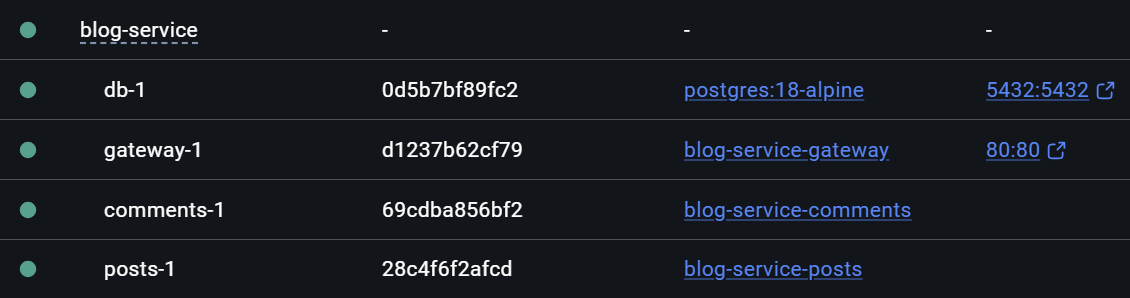
The database is currently still reachable from outside, for convenience so I can administer it through DBeaver, but even that is not required for running the app.
I hope this series has illustrated how easy it is to create a few simple microservices using Go, and package them up for deployment using Docker. One major benefit from using containers is how effortless it is to use off-the-shelve components, such as Postgres and nginx, without the usual hassle of installing them onto an existing system.